
Use this guide to change your screen resolution, adjust display scaling, and arrange multiple monitors so your mouse moves between screens correctly.
Step 1: Open Display Settings
Right-click on your desktop.
Select Display settings from the menu.
Step 2: Identify Your Monitors
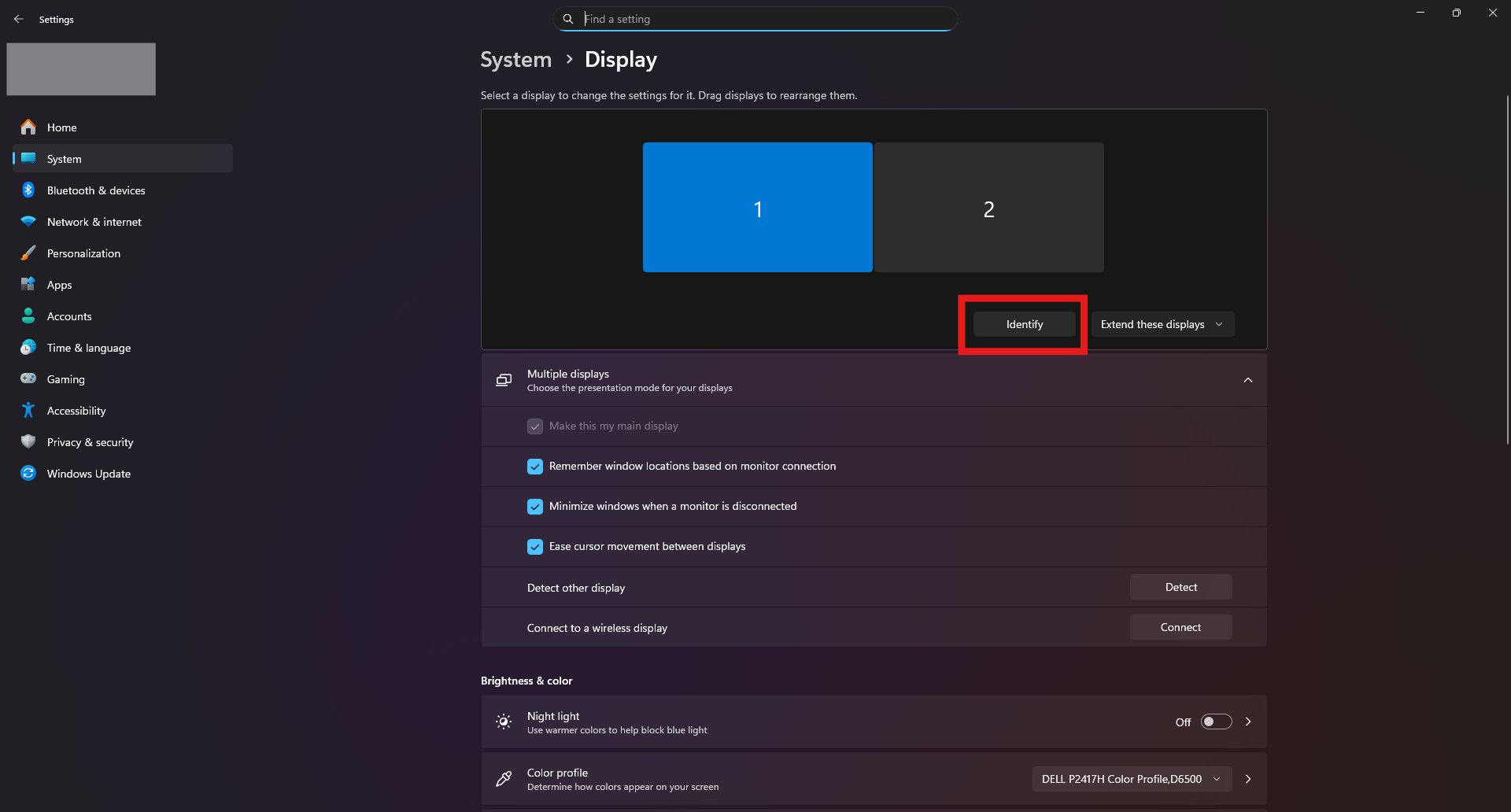
In Display settings, click Identify.
A number will appear on each screen so you can see which monitor is 1, 2, etc.
 Step 3: Arrange Monitors in the Correct Order
At the top of the Display settings page, you’ll see boxes representing each monitor.
Click and drag the monitor boxes to match the physical layout on your desk (left, right, above, or below).
Make sure the monitors align correctly so your mouse moves smoothly between screens.
Step 4: Set Your Primary Display (Optional)
Click the monitor you want to use as your main screen.
Scroll down and check Make this my main display.
Step 5: Adjust Display Resolution and Scaling
Scroll down to Scale and layout.
Choose a Scale option (recommended setting is usually marked).
Select a Display resolution (use the recommended resolution for best clarity).
Step 6: Apply and Confirm Changes
If prompted, click Keep changes to save your settings.
If the display does not look right, select Revert to undo the changes.
Troubleshooting Tips
If a monitor is missing, scroll down and click Detect.
If the screen looks blurry, make sure the recommended resolution is selected.
If the mouse moves in the wrong direction, re-check the monitor arrangement and alignment.
Restart your computer if changes do not apply correctly.
Need Help?
If you continue to have display or monitor issues, submit a ticket through the Help Center or contact IT support.